Create a Simple App
In this tutorial, let's build a simple React app with an Office UI Fabric React DocumentCard.
Prerequisites
Node.js and npm
Install Node.js and npm if you haven't already installed in your machine. It is recommended you at least install node version 4.x.x and npm version 3.x.x.
You can check your node and npm version by runningnode -vandnpm -vrespectively.
create-react-app package
We will use Create React App to quickly create a React app for this tutorial.
Once node and npm is installed, type the following command in a console to install the create-React-app npm package.
npm install -g create-react-app
Visual Studio Code
Download and install Visual Studio Code.
We will use Visual Studio Code as our code editor for this tutorial. Feel free to use your favorite code editor of choice if you do not want to use Visual Studio Code.
Step 1: Create react app
In a console, type the following command to create a simple React app.
create-react-app documentcardbasic-demo
This will install the required depedencies and scaffold a simple React app.

Once its complete, navigate to the documentcardbasic-demo folder.
cd documentcardbasic-demo
Type the following command to launch the React app in your browser.
npm start

Step 2: Install office-ui-fabric-react package
To use Fabric React in your project, you will need to first install the office-ui-fabric-react npm package. Type the following in the console to install the package:
npm install office-ui-fabric-react --save
If you havenpm startcommand still running, terminate the command by pressingCtrl+C.
Step 3: Add DocumentCardBasic component
Open the documentcardbasic-demo project folder in Visual Studio Code.
Open the file src\App.js and replace the existing code inside render method to only return the DocumentCard component:
<DocumentCard onClickHref='http://bing.com'>
  <DocumentCardPreview
    previewImages={ [
      {
        previewImageSrc: require('./documentpreview.png'),
        iconSrc: require('./iconppt.png'),
        width: 318,
        height: 196,
        accentColor: '#ce4b1f'
      }
    ] }
  />
  <DocumentCardTitle title='Revenue stream proposal fiscal year 2016 version02.pptx'/>
  <DocumentCardActivity
    activity='Created Feb 23, 2016'
    people={
      [
        { name: 'Kat Larrson', profileImageSrc: require('./avatarkat.png') }
      ]
    }
    />
</DocumentCard>
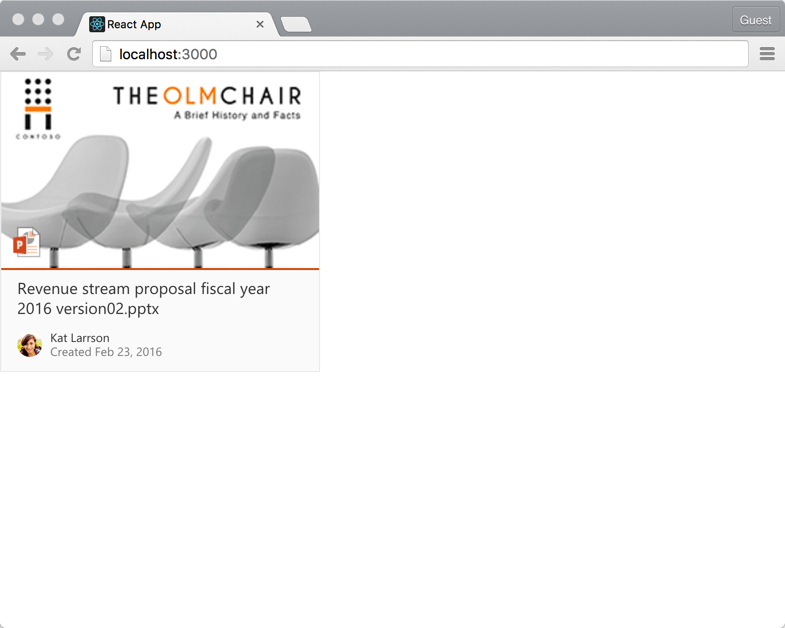
DocumentCard component contains the DocumentCardPreview, DocumentCardTitle and DocumentCardActivity components that help you describe the document card.
Since office-ui-fabric-react is a npm module, we will need to import the document card component in the App component.
Add the following import statement at the top of the src\App.js file just below import './App.css':
import {
  DocumentCard,
  DocumentCardPreview,
  DocumentCardTitle,
  DocumentCardActivity
} from 'office-ui-fabric-react/lib/DocumentCard';
Notice how we import only the specific component module from lib folder instead of importing the entire office-ui-fabric-react module.
Save the src\App.js file.
Below is an example of how you can similarly import other components:
import { DefaultButton, PrimaryButton } from 'office-ui-fabric-react/lib/Button';
Open index.html file.
Fabric React components provide support for Left-to-Right (LTR) and Right-to-Left (RTL) rendering out of the box.
You can specify the default direction in your index.html. Add the dir attribute with the value ltr to the <html> element:
<html lang="en" dir="ltr">
Load Office UI Fabric styles by linking to the Office UI Fabric CDN. Add the following to the <head> element:
<link rel="stylesheet" href="https://static2.sharepointonline.com/files/fabric/office-ui-fabric-core/9.0.0/css/fabric.min.css">
Save the file.
Copy the following images from GitHub to src folder.


Step 4: Preview document card
Switch to the console and type the following to preview your app in the browser:
npm start
You should see the document card component in your app.
Next steps
Congratulations! You have successfully built a simple React app with an Office UI Fabric React DocumentCard.
As next steps, try using other components like DetailsLists, Callout etc.,